Setting Up AI
AI features in EpicDraft enhance your writing experience by providing intelligent suggestions, automating tedious tasks, and offering insights into your screenplay. These tools are designed to help you focus on creativity.
EpicDraft never requires AI: every feature on this page is opt-in, and the app works fully without any of it.
Who can use AI
- Make sure your EpicDraft application is updated to the latest version to access AI features.
- Log in with an EpicDraft account that has a valid subscription. (A Pro Lifetime license counts permanently — AI never expires with the Cloud Service.)
- New accounts get a 14-day AI trial: for two weeks after signing up you can use every AI feature without a subscription, so you can decide whether it earns its keep before paying.
Choosing a provider
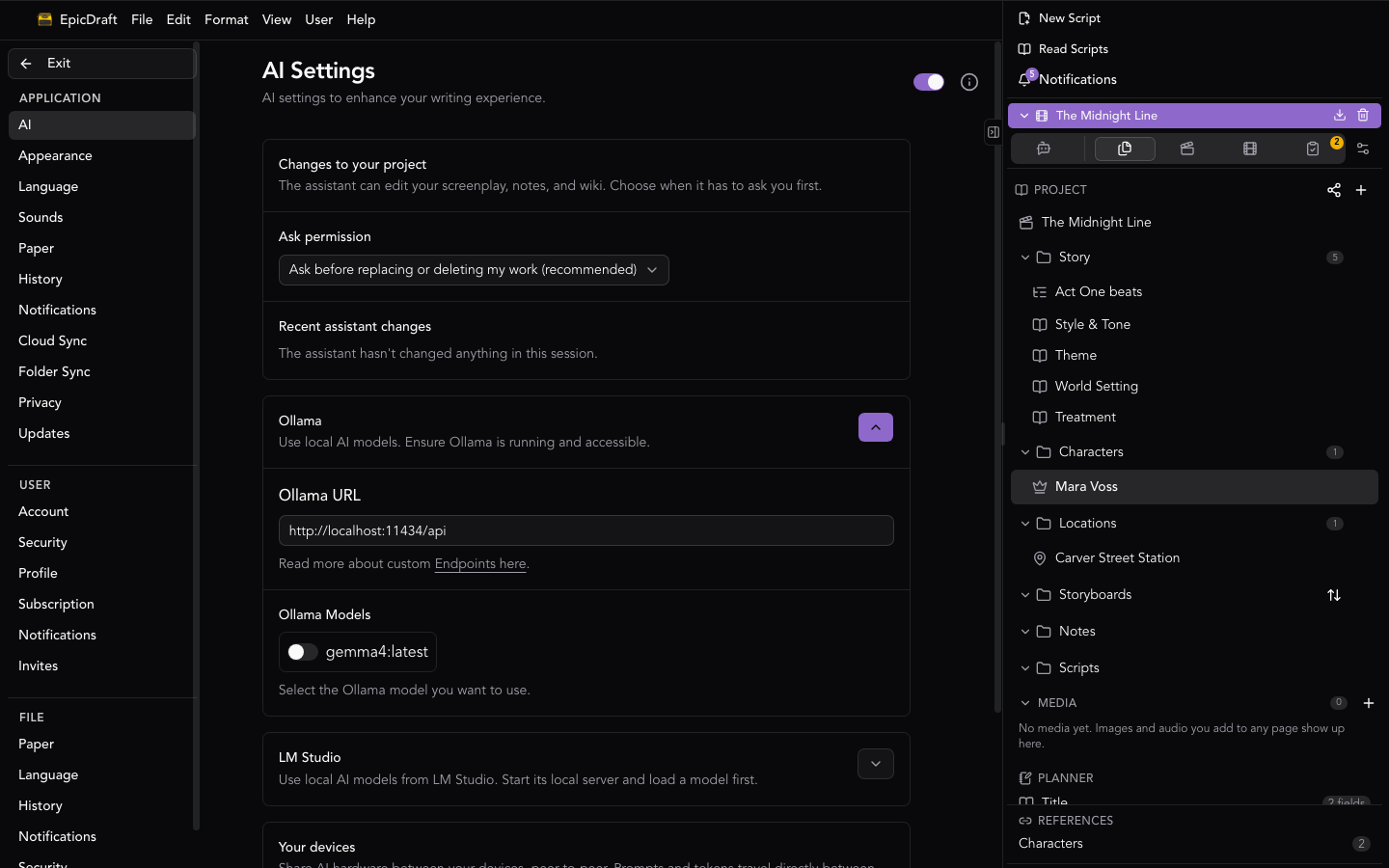
Open Settings → AI and switch AI on. Several providers can be enabled at once — each one is a card you expand and configure, and you pick which of them answers by default.
Remote providers
Bring your own API key for OpenAI, Anthropic, Google Gemini, or xAI Grok, or point the OpenAI-Compatible card at any service that speaks the OpenAI API. Each card takes an API key (and optionally a custom endpoint), links to the provider's page for creating a key, and probes the service so you can pick from the models your key actually has access to.
Your keys are stored on your device and requests go directly from your device to the provider — EpicDraft never proxies them or sees your key.
On-device models
Run a model inside EpicDraft itself, with nothing installed and nothing leaving your device. The local AI card lets you pick a model family and size, shows whether it fits this device's memory, and downloads it in place. Models load one at a time, on first use.
Ollama and local servers
If you already run Ollama (or a similar local server), EpicDraft can use it — see Ollama support below for the one bit of configuration the web app needs.
Another of your devices
A device that has on-device models can share them with your other devices: enable sharing on the machine that has the model, and it appears as a "Remote device" provider on your phone or laptop. Sharing is opt-in per device, and traffic stays between your own devices. (This is different from the remote providers above — no third-party service is involved.)
The default AI, and creativity
The Default AI card chooses which enabled provider answers when nothing more specific applies, and what to optimize for — faster answers or better ones. The Creativity slider sets how adventurous generated text should be; asking for the same thing repeatedly without editing in between automatically nudges creativity up, so a run of samey results actually diverges.
Graph-focused context (experimental, on by default) lets the AI anchor what it reads on the scene your caret is in, or the page you are editing, instead of always starting from the top of the document — answers get more relevant on long scripts. Switch it off in the Default AI card if you prefer.
Synopses are briefs. A Fountain synopsis (a line starting with =, ⌘Y / Ctrl+Y) describes the scene or passage that follows it and never prints. The AI is handed the synopsis for the scene your caret is in and for the passage it is writing, and the scene list it reads carries each scene's synopsis. Write = what this scene is for above a heading and the suggestions, commands and chat work toward it. See Notes and synopses.
Which model runs what
Different jobs suit different models, so routing is per task. The task models table lists each kind of work — Chat, Editor suggestions, Analysis, Field suggestions, PDF & image reading, Voice & dictation, Image, Speech — and lets you pin a specific provider and model to any of them. Everything defaults to Auto, which picks from your enabled providers and shows what it picked and why.
Two tasks are deliberately never auto-routed to a remote service: Image and Speech only use a remote provider if you pin one yourself. See Generating Images and Read Aloud.
What the assistant may change
The Changes to your project setting controls when AI tools that modify your project ask first:
- Ask for every change — nothing is written without your approval.
- Ask for destructive changes (default) — additions go through; overwrites and deletions ask.
- Don't ask — the assistant works unattended.
A journal keeps track of what the assistant changed, so its work can be undone. A version of the project is also saved before destructive tool calls — it shows in File History as Before the assistant — so a rollback survives even a reload.
Stopping AI
Anything the AI is doing can be stopped at any time:
- Press ⌘. / Ctrl+. to interrupt every running AI feature at once.
- A Stop notice appears whenever an AI run takes more than a moment, with a button that does the same.
- Individual features have their own exits too — Escape dismisses a suggestion or command in progress.
Usage and cost
The AI Usage panel in Settings → AI shows token usage and estimated cost across all your scripts. The log is stored only on your device and is never shared. Usage also surfaces where you work: in the chat panel and the editor's status bar.
Ollama support
Ollama is a platform that provides access to various AI models. EpicDraft supports Ollama, allowing you to leverage its capabilities for generating text, suggestions, and more. To use Ollama with EpicDraft, ensure you have Ollama installed and running.
Allowing EpicDraft's origin
Ollama answers browser requests only from the origins listed in its
OLLAMA_ORIGINS environment variable. Out of the box that list covers
localhost, 127.0.0.1 and the app://, file:// and tauri:// schemes —
enough for the desktop and mobile apps, but not for EpicDraft on the web.
Until you add the web app's origin, every request is answered with
403 Forbidden, which the browser reports as a failed connection.
Set OLLAMA_ORIGINS to the origin shown in the address bar (for the hosted app,
https://app.epicdraft.com), then restart Ollama and reload EpicDraft.
On macOS:
launchctl setenv OLLAMA_ORIGINS "https://app.epicdraft.com"On Windows, open Environment Variables and add a new user variable called
OLLAMA_ORIGINS with that value — or from a terminal:
setx OLLAMA_ORIGINS "https://app.epicdraft.com"On Linux, or any time you start the server yourself:
OLLAMA_ORIGINS="https://app.epicdraft.com" ollama serveSeparate several origins with commas. * allows every site to reach your
Ollama server, so prefer listing the origins you actually use.
If EpicDraft still shows no models after this, the AI settings panel tells you which problem it is: whether Ollama refused the page's origin, or whether the server could not be reached at all.